
Building or upgrading a PC can be confusing, especially when different components have different performance levels. A powerful graphics card may look like a great investment, but if the processor cannot keep up with it, the system may not deliver the performance you expect. The same principle applies to RAM, storage, and other hardware.
This is why checking your system balance before upgrading can be useful. A bottleneck calculator provides a convenient way to estimate whether your CPU and GPU are well matched and whether one component could limit the performance of another.
Understanding potential bottlenecks can help PC users make better upgrade decisions, avoid unnecessary spending, and troubleshoot performance problems more effectively.
What Is a PC Bottleneck?
A bottleneck happens when one component of a computer becomes a limiting factor for the overall system. The term comes from the idea of a bottle: regardless of how wide the rest of the container is, liquid can only pass through the narrowest section at a certain rate.
The same concept applies to computers. A PC may have a fast graphics card, plenty of RAM, and a modern SSD, but an underpowered CPU could limit performance in certain workloads.
For example, imagine installing a high-performance graphics card into a system with an older processor. In games that depend heavily on CPU performance, the processor may not be able to prepare and deliver information to the GPU quickly enough. The graphics card may therefore remain underutilized.
The opposite can happen as well. A powerful processor paired with a relatively weak graphics card may result in the GPU becoming the primary limitation, particularly when playing games at high resolutions or demanding graphical settings.
A bottleneck is not automatically a sign that your computer is defective. Every PC has a component that becomes the limiting factor under a particular workload. The important question is whether that limitation is significant enough to affect the experience.
What Does a Bottleneck Calculator Do?
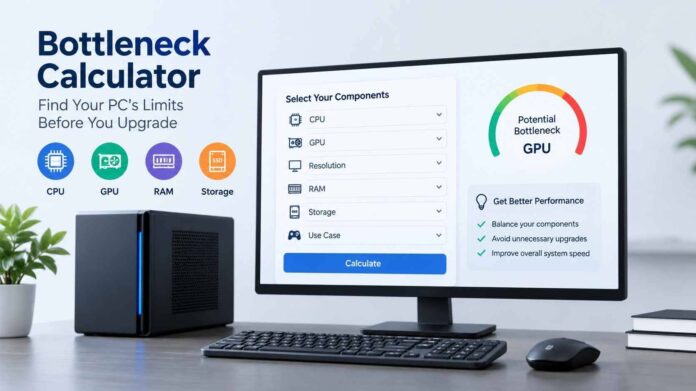
A bottleneck calculator is an online tool designed to estimate the balance between different PC components. IObit’s calculator allows users to select their CPU and GPU and then provide information such as screen resolution, RAM capacity, storage type, and primary usage. Its available use cases include gaming, video editing, programming, general use, gaming with streaming, and workstation workloads.
This information gives the calculator more context than simply comparing two component names.
For example, the same CPU and GPU combination may behave differently depending on whether the system is being used for 1080p gaming, 4K gaming, video editing, or general productivity. Resolution and workload can change which component is under the most pressure.
The calculator can therefore be useful as a starting point when planning a new PC or deciding which component should be upgraded first.
Why CPU and GPU Balance Matters
The CPU and GPU perform different jobs, but they need to work together efficiently.
The CPU handles many general-purpose calculations and provides instructions that applications and games need. The GPU specializes in graphics processing and parallel workloads.
In gaming, the balance between these components can have a noticeable impact on frame rates and consistency.
A very powerful GPU does not guarantee high FPS if the processor is unable to keep up. Likewise, buying an extremely powerful CPU may provide limited gaming benefits if the graphics card is the part holding performance back.
A bottleneck calculator can help users identify these potential imbalances before spending money on an upgrade.
Common Types of PC Bottlenecks
CPU Bottleneck
A CPU bottleneck occurs when the processor becomes the limiting component. This can happen in CPU-intensive games, simulations, content creation applications, and workloads that require substantial processing power.
Common signs can include high CPU utilization, inconsistent frame rates, stuttering, or situations where the GPU is not being fully utilized.
However, CPU utilization should not be considered by itself. A processor reaching high usage during a demanding workload is not necessarily a problem. The overall performance and behavior of the system matter.
GPU Bottleneck
A GPU bottleneck occurs when the graphics card is working at or near its maximum capacity while the CPU has additional available resources.
This is common in graphically demanding games, particularly at higher resolutions and quality settings.
For example, increasing resolution from 1080p to 1440p or 4K generally places more work on the graphics card. If the GPU is already struggling, lowering graphical settings or upgrading the graphics card may provide a larger improvement than replacing the CPU.
RAM Bottleneck
RAM can also become a limiting factor. When the system does not have enough memory for its applications and workload, Windows may need to rely more heavily on storage, which is considerably slower than RAM.
Insufficient RAM can contribute to slowdowns, application delays, stuttering, and poor multitasking performance.
The amount of memory required depends on the user. Basic office work has different requirements from modern gaming, video editing, 3D rendering, or professional workloads.
Storage Bottleneck
Storage is another area that can affect overall responsiveness.
Older mechanical hard drives are generally much slower than SSDs and NVMe SSDs. Moving Windows and frequently used applications to faster storage can improve boot times, application loading, file transfers, and general responsiveness.
However, storage speed should not be confused with CPU or GPU performance. Replacing an HDD with an SSD may make a computer feel considerably faster without necessarily increasing gaming FPS.
How to Use a Bottleneck Calculator Before an Upgrade
One of the most useful times to use a bottleneck calculator is before buying new hardware.
Suppose you are planning to purchase a new graphics card. Instead of looking only at the GPU’s specifications, check how it is expected to work with your existing CPU, RAM, resolution, and intended workload.
Similarly, if you are building a new gaming PC, you can compare your planned processor and graphics card before purchasing the components.
IObit’s calculator provides configuration fields for CPU, GPU, resolution, RAM, storage type, and primary use, allowing users to evaluate a broader picture of the system rather than relying on a simple CPU-versus-GPU comparison.
The results should still be considered an estimate rather than a guarantee. Actual performance depends on the specific game or application, software optimization, drivers, temperatures, background processes, and other variables.
Not Every Performance Problem Is a Hardware Bottleneck
It is easy to blame hardware when a computer feels slow, but the cause may actually be software or system configuration.
Unnecessary startup applications, background processes, temporary files, outdated drivers, excessive browser tabs, overheating, and poorly configured settings can all affect performance.
This means it is important to troubleshoot the entire system before purchasing new components.
For example, if a game suddenly starts performing worse after months of normal operation, immediately replacing the GPU may not be the best solution. Checking temperatures, drivers, background processes, and system settings could reveal a simpler cause.
Keep Drivers Updated
Drivers play an important role in allowing Windows and hardware components to communicate correctly.
Graphics cards, network adapters, audio devices, chipsets, and other hardware rely on appropriate drivers. Driver updates can also include compatibility improvements, bug fixes, optimizations, and support for newer applications and games.
IObit’s Driver Booster is designed to help Windows users manage and update device drivers. The company’s feature information describes capabilities including driver updates, driver backup and restore, driver issue resolution, and game-related driver updates.
Keeping drivers properly maintained is therefore another step worth considering when troubleshooting PC performance.
Internet Problems Are Different From Hardware Bottlenecks
Another common mistake is confusing network problems with PC performance problems.
If an online game has high ping, websites load slowly, or downloads are inconsistent, upgrading the CPU or GPU may not solve the issue.
The problem could instead be related to the internet connection, router, Wi-Fi conditions, network configuration, or bandwidth usage by other applications.
An Internet Booster can focus on network-related optimization rather than hardware performance. IObit’s Internet Speed Booster information describes features intended to optimize network settings, manage bandwidth priorities, monitor network performance, and reduce latency for activities such as gaming and video calls.
Separating network problems from hardware bottlenecks makes troubleshooting much more effective.
Practical Ways to Reduce PC Performance Problems
Before buying expensive hardware, try a few basic optimization steps:
- Close applications that are not currently needed.
- Disable unnecessary startup programs.
- Keep Windows and important hardware drivers updated.
- Check CPU and GPU temperatures.
- Remove unnecessary temporary and junk files.
- Make sure the system has sufficient free storage space.
- Adjust game graphics settings according to your hardware.
- Check RAM usage during demanding workloads.
- Use an SSD instead of an older HDD where appropriate.
- Investigate network problems separately from hardware performance.
- Upgrade the component that actually limits your workload.
These steps can sometimes improve the overall experience without requiring a major hardware upgrade.
When Should You Upgrade Your Hardware?
A hardware upgrade makes sense when the existing component consistently limits the tasks you perform.
For example, a gamer who regularly sees the GPU operating at full capacity while frame rates remain below the desired level may benefit from a faster graphics card.
On the other hand, someone experiencing high CPU usage and poor performance in CPU-heavy applications may benefit more from a processor upgrade.
The goal should not be to purchase the most expensive component available. Instead, aim for a balanced system that matches your workload and budget.
This is where a bottleneck calculator can be helpful. It provides an initial indication of where a potential imbalance exists, allowing you to investigate further before making a purchasing decision.
Use Bottleneck Results as a Starting Point
It is important not to treat a bottleneck percentage as an absolute measurement of real-world performance.
PC performance is complicated. Two systems with identical CPUs and GPUs can produce different results because of differences in RAM configuration, cooling, drivers, motherboard settings, software, game optimization, and background activity.
A calculator is therefore best used as a planning and troubleshooting tool rather than the only source of information.
If a calculator indicates a potential CPU bottleneck, for example, you can verify the situation using real-world monitoring tools while running your normal workload.
Final Thoughts
A balanced PC is usually more useful than a collection of expensive components that do not work efficiently together. Before upgrading, it is worth understanding which part of the system is actually limiting your performance.
A bottleneck calculator offers a simple way to evaluate CPU and GPU balance while considering factors such as resolution, RAM, storage, and intended use. It can be particularly useful when planning a gaming PC or deciding which component to upgrade first.
However, hardware is only one part of the equation. Driver maintenance, system optimization, storage health, background applications, temperatures, and network performance can also influence the overall experience.
By identifying the actual source of a performance problem first, users can make smarter upgrade decisions and avoid spending money on hardware that may not address the real issue.
Frequently Asked Questions
- What is a bottleneck calculator?
A bottleneck calculator is an online tool that estimates whether one PC component, particularly the CPU or GPU, may limit overall system performance. It can help users evaluate hardware combinations before building or upgrading a computer.
- Is a CPU bottleneck always bad?
No. Every system has a limiting component under a particular workload. A CPU bottleneck only becomes a concern when it significantly affects the performance you want from the computer.
- Can a bottleneck calculator help with PC upgrades?
Yes. It can provide a starting point for determining whether your CPU, GPU, RAM, storage, or overall configuration may need attention before you purchase new hardware.
- Can outdated drivers cause PC performance problems?
They can. Driver issues may cause compatibility, stability, or performance problems. Keeping important hardware drivers appropriately updated is one part of maintaining a PC.
- Does an Internet Booster fix hardware bottlenecks?
No. An Internet Booster is intended for network-related performance issues, such as connection optimization and latency, rather than replacing a weak CPU or GPU. IObit describes its Internet Speed Booster around network optimization and latency-related improvements.
- Should I upgrade my CPU or GPU first?
It depends on your workload and which component is limiting performance. A bottleneck calculator can provide an initial indication, but real-world monitoring and the applications you use should also be considered before making an upgrade decision.